Dynamic Gmail Signatures With NGINX
This technical tutorial shows how liven up Gmail signatures with dynamic GIFs using some crafty NGINX configuration.


When I first started my previous full-time job at GIPHY, one of the onboarding tasks was to make my emails more animated by adding a transparent GIF to my Gmail signature. I chose this GIF of Cranky Kong:

Since leaving that job, I've wanted to do something similar with my personal email, but I wanted to make it more fun by adding an element of randomization. This proved challenging, however, due to security restrictions around running JavaScript within the Gmail ecosystem. Eventually, I found an elegant solution.
This post covers how to create a dynamic Gmail signature using NGINX with two main goals:
Primary Goal: No third-party clients, apps, or anything requiring Google authentication.
Secondary Goal: Avoid sourcing, uploading, naming, etc., the actual image files ourselves.
Given these goals, and the limitation of Gmail signatures to just formatted text and images, we basically need a static URL that behaves dynamically.
Getting Started
For simplicity's sake, this post skips the more basic setup and assumes that you already:
a) have access to a server you own (such as a VPS, EC2 instance, etc.), and
b) are using NGINX as your HTTP server/reverse proxy.
My website (and this Ghost-powered blog you are currently reading) lives on a VPS hosted by OVHcloud and currently running Ubuntu 25.
Finding Images
The dynamic aspect of this project is simply selecting a random image from a collection of images on each request. The ideal image collection should have:
- a lot of variety
- predictable filenames so URLs can be generated programmatically, and
- public accessibility over HTTPS
Naturally, Pokémon sprites are a perfect candidate. The large number of Pokémon to choose from means that the chance of a repeated image, and thus a repeated Gmail signature, is very slim.
After some digging, I came across projectpokemon.org which has all of the sprites from several of the video games logically organized in publicly accessible directories.

NGINX
The key to building the desired URL is NGINX.
NGINX is a ubiquitous, high-performing, open-source web server software. Install instructions can be found here. The VPS used for reference in this post is running on Ubuntu, which installs NGINX with a number of best practices already prepared.
At a high level, NGINX will be used to:
- compute a random image URL per request using NGINX JavaScript (njs)
- store that URL in a variable (
$sprite_url) - proxy the incoming request to the stored URL
This approach is perfect because the the client (Gmail in this case) only ever sees a single “static” endpoint (/sprite). Gmail won’t run JavaScript code, but it will fetch an image URL and display it.
nginx.conf
Navigate to the root level of the NGINX directory (usually /etc/nginx) and find the config file with the global http block (likely nginx.conf). Add the following lines to this file:
...
load_module modules/ngx_http_js_module.so;

http {
    ...
    js_import sprite.js;
    js_set $sprite_url sprite.get_sprite_url;
}
These new lines do the following:
load_module modules/ngx_http_js_module.so;enables the njs module (discussed in the next section) so NGINX can run JavaScript in the request pipeline.js_import sprite.js;tells NGINX to load our script file (created below).js_set $sprite_url sprite.get_sprite_url;calls the exportedget_sprite_urlfunction for every incoming request and assigns its return value to the$sprite_urlvariable.
NJS
NGINX JavaScript (njs) extends nginx functionality with an ECMAScript-compatible interpreter for HTTP and Stream modules. This module is the key to creating the dynamic response that the /sprite endpoint needs. Follow the njs install instructions here and then create a new file called sprite.js in the /etc/nginx directory.
Add the following to this file:
function get_sprite_url(r) {
    var randomNum = Math.floor(Math.random() * 492) + 1;
    var src = "https://projectpokemon.org/images/sprites-models/bw-animated/" + randomNum.toString().padStart(3, '0') + ".gif";
    return src;
}

export default {get_sprite_url};
njs code snippet
This script generates a random number between 1 and 493 (which covers all Pokémon from the first four generations of Pokémon games, my favorite), appends it to the projectpokemon URL to fetch the Gen-V sprite of that Pokémon, and returns it.
There's a few implementation details in this snippet worth calling out:
- The
padStart(3, '0')is needed because the projectpokemon.org filenames are zero-padded (e.g.001.gif,042.gif,492.gif). - This function returns a fully-qualified URL (including
https://) so NGINX can proxy to it directly.
yourdomain.com.conf
With the njs script in place and $sprite_url generated on each request, the last step is to wire that variable into the site’s server config.
Open the server-specific config (e.g. yourdomain.com.conf, likely in the /etc/nginx/sites-available directory) and add a new location block that looks like this:
location = /sprite {
    proxy_pass $sprite_url;                                       # URL to forward the request to
    proxy_set_header Host projectpokemon.org;                     # Preserve the host header
    proxy_set_header X-Real-IP $remote_addr;                      # Preserve client IP address
    proxy_set_header X-Forwarded-For $proxy_add_x_forwarded_for;  # Preserve X-Forwarded-For header
    proxy_set_header X-Forwarded-Proto $scheme;                   # Preserve the protocol (http/https)
    proxy_no_cache 1;                                             # Don't cache the response
    proxy_cache_bypass 1;                                         # Bypass cache for every request
    proxy_redirect off;                                           # Prevent proxying the redirect (keeps URL as mywebsite.com/sprite)
}
This block is essentially the "static URL that behaves dynamically".
Most of the headers are there for correctness and observability, but there are a few important ones:
proxy_pass $sprite_url;is where the magic happens, i.e. proxy the request to the URL that was computed at request time.proxy_no_cache/proxy_cache_bypassensures NGINX doesn’t cache the upstream response and return it on subsequent requests. Gmail could still cache it on their side, but that is out of our control.
With this block in place there's now a single endpoint that can live unchanged in a Gmail signature while the image it returns changes every time it’s requested. To summarize what's happening under the hood:
- The client requests
https://{yourdomain.com}/sprite. - NGINX evaluates
$sprite_urlby running the njs function wired up byjs_set. - NGINX then fetches that remote GIF and streams it back to the client as if it came from this server.
Testing
Make sure to save all of the NGINX config files after updating them. Then, test that the overall config is still valid using sudo nginx -t and then use sudo service nginx restart to restart the server (some distros might use systemctl instead of service).
After restarting NGINX, navigate to https://{yourdomain.com}/sprite in a browser and you should see a Pokémon sprite. Refresh the page and you should see a different Pokémon (unless you're really unlucky).
Configuring Gmail
The last step is to update your Gmail signature. In the Gmail web client, navigate to Settings -> General -> Signatures -> Create New. Give the signature a name, use the Insert image button, and paste the newly created URL:
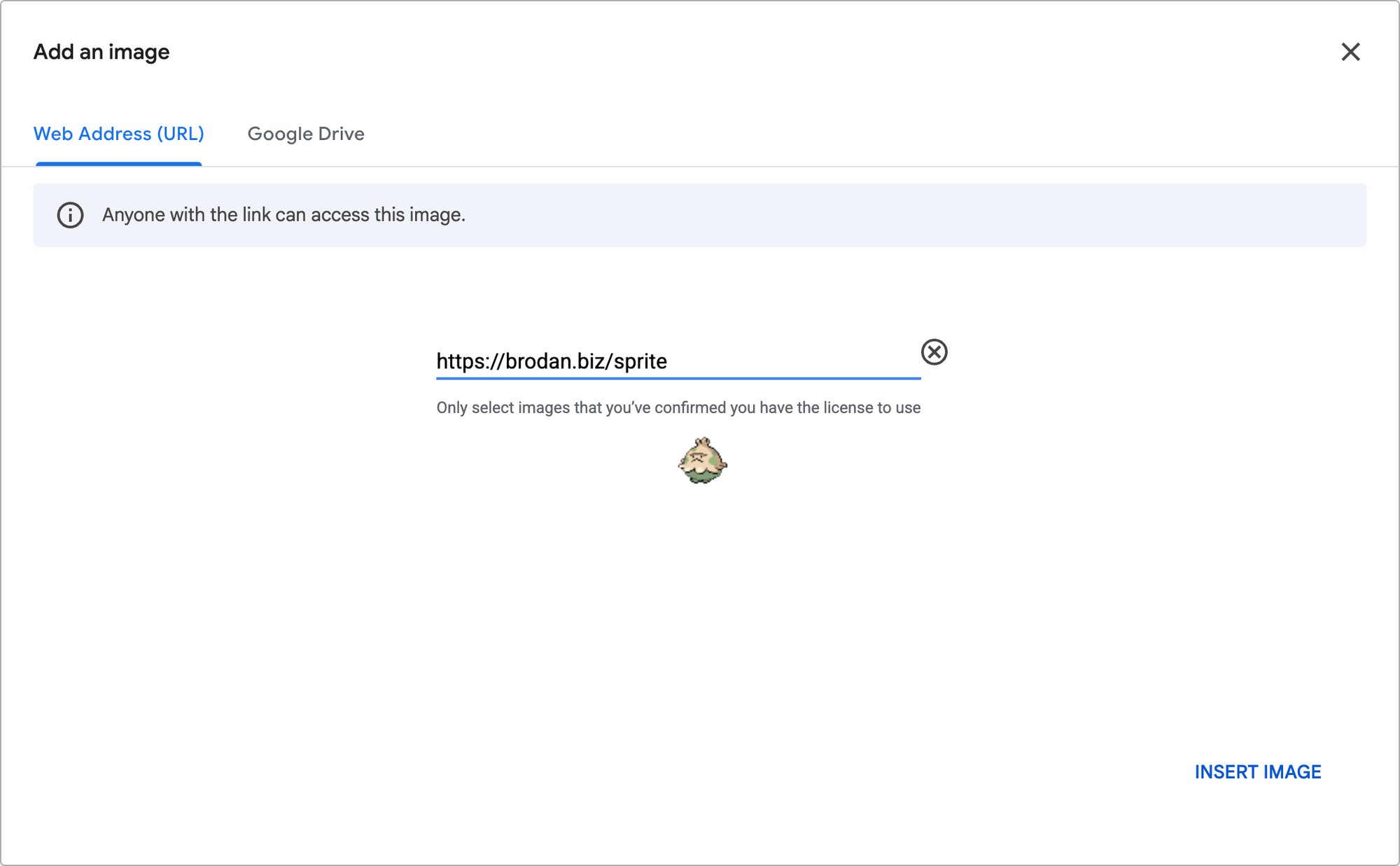
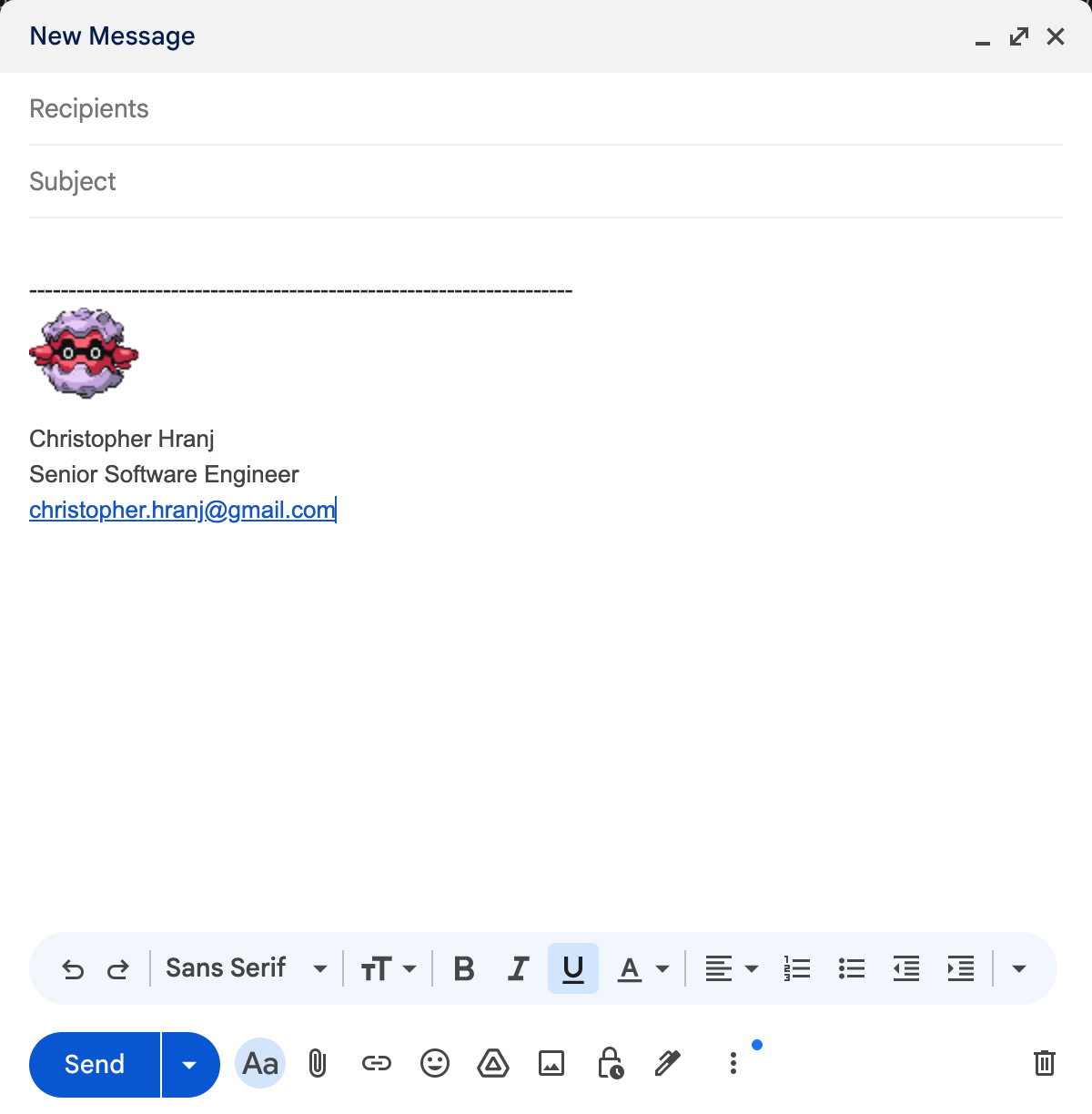
Be sure to click 'Insert Image' in the bottom right and then save the new signature. New emails should now look something like this:
Wrapping Up
Congratulations, you now have an animated Gmail signature that changes with every email you send!
One important thing to note is that the same sprite might sometimes appear within a short time frame or when refreshing Gmail. Despite the cache rules configured in the NGINX, there's nothing that can be done if Google decides to cache the image response on their side. However, if it does get cached, the TTL is pretty short (in my experience).
If you'd prefer not to go through all this trouble and just want to use my endpoint instead, feel free to do so: https://brodan.biz/sprite.
Thanks for reading! If you enjoyed this post, want to support my work, or decide to use my endpoint, consider buying me a coffee.